The PlayMaker 2 beta is a decision for a new Unity project, not a package to drop into an existing PlayMaker 1 game. Hutong Games says the two project formats are not backwards compatible and warns that importing version 2 into a version 1 project causes issues. The current Asset Store listing is 2.0.0-beta.89, dated October 16, at US$65 per seat before tax.
Verified October 23, 2026. We have not installed or tested the beta. The following checks use the publisher’s listing and installation documentation to define a sensible evaluation.
1. Decide whether the PlayMaker 2 beta fits a new project
The listing recommends version 2 for new projects and says PlayMaker 1 remains available and supported for existing work. Existing PlayMaker 1 projects cannot be opened directly in version 2. Treat that as an adoption boundary, rather than assuming a major version number means an automatic migration.
If your team already has a working game, identify which state machines, custom actions and third-party integrations would need reimplementation or verification. Do not assume a vendor’s general feature list establishes compatibility with your particular extension. For a new prototype, choose one small gameplay interaction that exposes your real workflow needs.
2. Check Unity, Entities and release-channel requirements
The official installation guide requires Unity 2022.3 LTS or later and says prerelease Unity versions are not officially supported. It also warns that the Entities package is incompatible in Unity versions earlier than 6.5. These are separate constraints: meeting the editor minimum does not remove the Entities limitation, and choosing a newer alpha does not make it supported.
The store’s compatibility table lists Built-in, URP and HDRP as compatible for its displayed 2022.3.62f1, 6000.0.58f2, 6000.4.4f1 and 6000.5.0f1 rows. Compare your exact stable editor and package stack with both sources. A render-pipeline checkbox alone does not validate every dependency in a production project.
3. Test a useful slice of the visual workflow
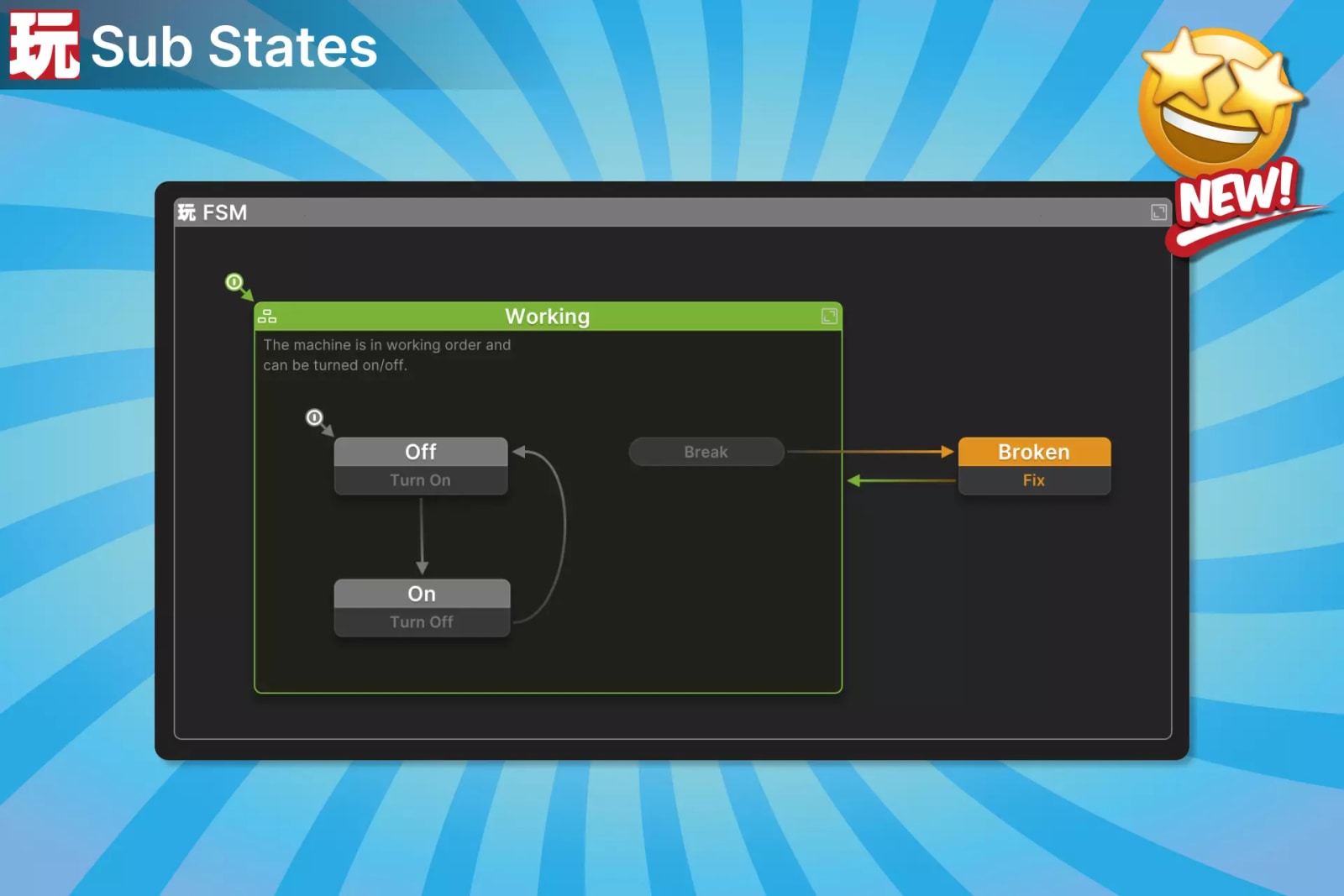
The publisher describes hierarchical state machines, Sub States, parallel Regions, live visual debugging and variable watching. It also lists systems for UI, interactions, saving/loading, pooling and data tables. These are advertised capabilities, not results from our own build or a guarantee that every example is a finished solution for your game.
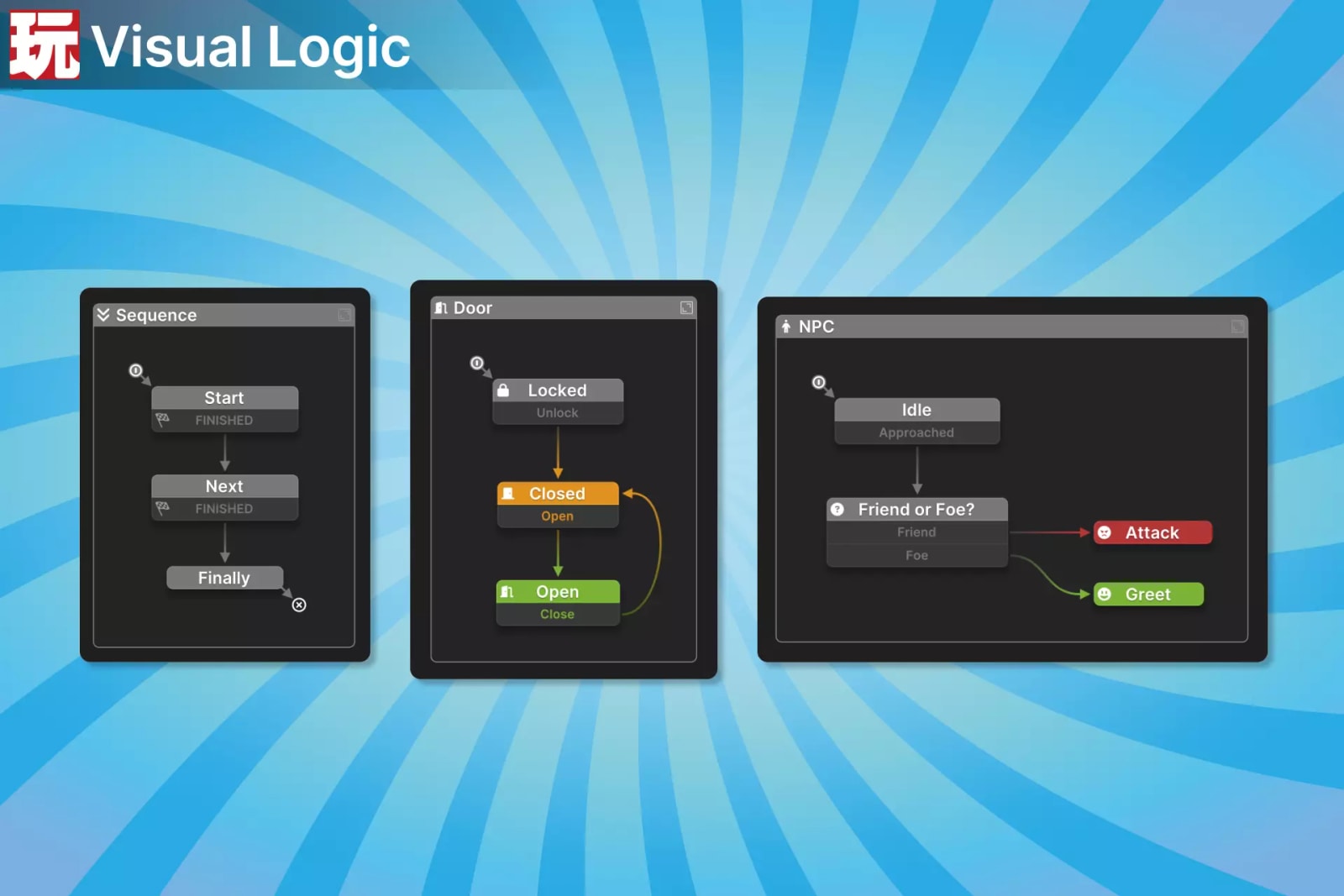
A useful evaluation could connect an interaction to a state transition, save a small piece of state and restore it after restarting a test scene. Check whether another team member can understand the graph and inspect variables while it runs. That gives you evidence about maintainability rather than judging the tool only by how quickly a sample first opens.
4. Budget the actual seat and beta terms
The store identifies PlayMaker 2 as an Extension Asset under the Standard Unity Asset Store EULA. Extension Assets use per-seat licensing. Review the current seat and contractor clauses for everyone who needs to use the tool; do not treat one purchase as an unlimited team licence.
The publisher calls the US$65 amount a reduced public-beta introductory price. We observed no introductory-price deadline or percentage, so there is no verified countdown to act on. Taxes are calculated at checkout, and no checkout or ownership-upgrade entitlement was tested. The beta status should matter more to a production decision than an unsupported urgency claim.
5. Evaluate in an isolated project before committing
Follow the publisher’s two-stage installation process in a separate test project or a recoverable project copy: import the installer, then use it to import PlayMaker after Unity finishes processing and compiling. The documented menu is PlayMaker → Install. The About window under PlayMaker → Help reports the installed version.
Keep the editor, beta and dependency versions with your findings. Review graph readability, compile errors, save/load behavior and the target build, then decide whether the demonstrated benefit justifies adoption. Use the official documentation for deeper evaluation and our game-development coverage for other workflow decisions.
Sources and verification
- PlayMaker 2 beta: exact Asset Store listing
- Official installation and compatibility guide
- Unity Asset Store EULA
Images: official Hutong Games PlayMaker product artwork. All rights remain with their respective owners.