

A Steam Linux alt-tab freeze now has a specific released fix: Valve’s October 21 client notes say Vulkan games hanging after alt-tab has been fixed. If that matches your symptom, update the Steam desktop client and retest the same game before changing Proton versions, graphics drivers or launch options.
Checked October 22, 2026. We have not tested this client fix.
1. Does your Steam Linux alt-tab freeze match the fix?
The documented combination is Linux, a Vulkan game and a hang after switching away with alt-tab. A crash before a game opens, poor frame rates during ordinary play, or a Windows-only problem does not automatically match this entry. Record what happens: does the picture stop, does audio continue, can you return to the desktop, and does the whole client stop responding?
The note does not name affected distributions, graphics cards, desktop compositors or individual games. It also does not publish a universal recovery command. Treat the entry as a client correction for this trigger, not evidence that every Linux gaming freeze is solved.
2. Update the Steam client, then restart it
Valve says the released client update downloads automatically. Let Steam finish its update and complete the requested restart. A game download finishing is not proof that the desktop client has restarted into a newer build. Check the client information and update status before repeating the test.
Valve posted these release notes on October 21 at 6:10 p.m. EDT. The note does not publish a client build identifier or identify the first affected version. Keep your local build information alongside the update check when comparing results.
The same release also fixes a Linux case where the updater interface failed to appear. If no updater window appears, that alone does not establish whether your client is current. Keep the update status and client build details with your notes instead of assuming the absence of a window means success.
3. Record the client channel before changing anything
Valve’s client-beta help places Client Beta Participation under Steam, Settings, Interface on desktop. Read the selection so your report identifies whether you use the normal release or a beta. You do not need to opt into a beta merely because an update is recent; this fix is announced as a released client update.
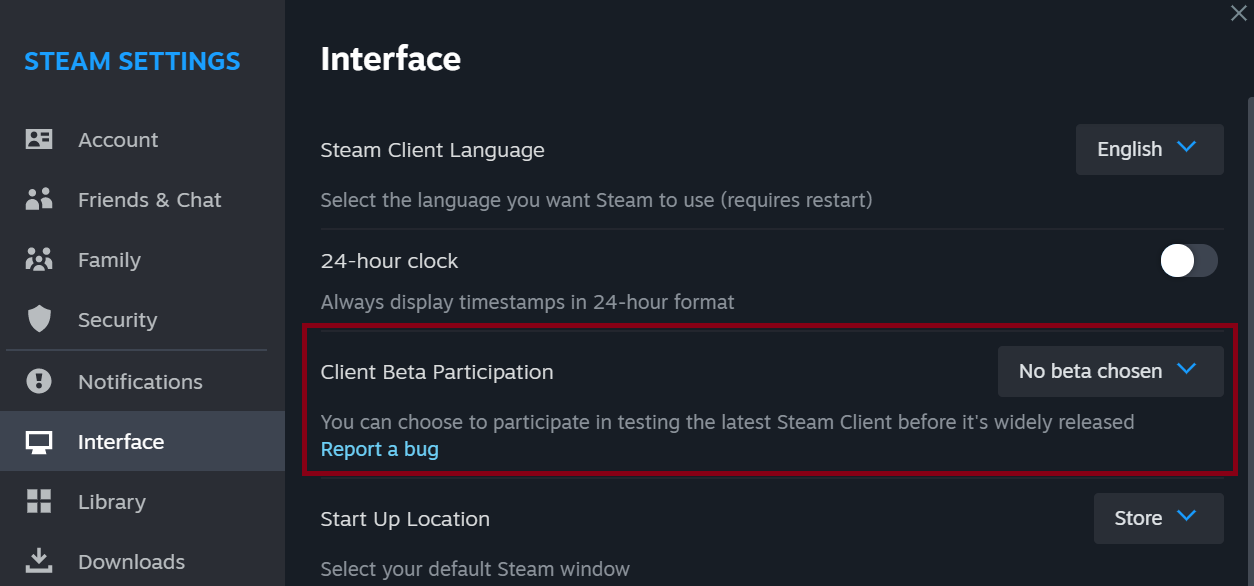
Steam Deck has a separate update-channel route in that help article. Do not translate a desktop client note into a promise that a particular SteamOS image or handheld firmware has changed. Record the actual device and software channel if you are investigating a handheld.
4. Repeat one controlled alt-tab test
Retest the Steam Linux alt-tab freeze in a session where losing progress will not matter. Launch the same game with the same renderer and settings, play briefly, then switch away and return in the way that previously triggered the hang. Note whether the issue returns immediately, only after several switches, or not during this test.
For this comparison, keep the renderer selection unchanged. Switching from Vulkan to another renderer changes the path being tested, so it cannot establish whether the Vulkan correction worked. Use only renderer options the game officially supports, rather than assuming a launch flag from another title applies. Record the number of switches and the length of the session so a clean attempt is not mistaken for a sustained result.
Keep the game version, Proton selection if used, graphics driver, display mode and desktop session unchanged for the first comparison. If you change all of them at once, a successful retest cannot tell you which change mattered. A short successful session is encouraging evidence for your setup, not a guarantee for every game or a measured performance improvement.
5. Report a Steam Linux alt-tab freeze that persists
If the Steam Linux alt-tab freeze persists, collect the client build and channel, distribution, desktop session, GPU and driver version, game version, renderer and compatibility-tool version if relevant. Include the shortest steps that reproduce the hang and distinguish the game freezing from the entire desktop locking up. Share only information needed for the report, after removing private account details or paths.

Start from Steam Support for the appropriate help route. Avoid deleting a game’s compatibility data or saves as the first response to this client-specific note. For other issues, browse our PC gaming coverage and match any guide to its stated platform and trigger.
Sources and verification
Images: official Valve wordmark and illustrations. ©2026 Valve Corporation. Steam and the Steam logo are trademarks and/or registered trademarks of Valve Corporation in the U.S. and/or other countries. No endorsement is implied.