
MW4 Secure Boot checks start in Windows, not with a blind BIOS change. For Call of Duty: Modern Warfare 4, Activision says TPM 2.0 and Secure Boot are required for online modes. Read the exact warning and your current status first. A system that reports TPM version 2.0 may still have a separate firmware-attestation problem.
- Scope: the PC security-requirement check, not a universal crash or FPS fix.
- Source-checked October 21, 2026, ahead of the October 23 full release.
- Record TPM Specification Version, Manufacturer Version, BIOS Mode and Secure Boot State.
- Do not clear the TPM, convert a disk or copy another motherboard's firmware as a first step.
1. Identify the MW4 Secure Boot warning precisely
The game-specific Activision support entry says players without the required security features are restricted from any online game mode in Modern Warfare 4. Do not substitute the different wording for another Call of Duty game or assume access to one mode proves eligibility for every mode.
Save the exact error text. A security scan result, a TCG Event Log notice and a normal desktop crash are different observations. Our recommendation is to complete this checklist only for a matching security warning. If the game instead reports a connection, installation or graphics error, follow that problem’s support route; enabling an unrelated setting is not a diagnosis.
2. Read TPM status without clearing it
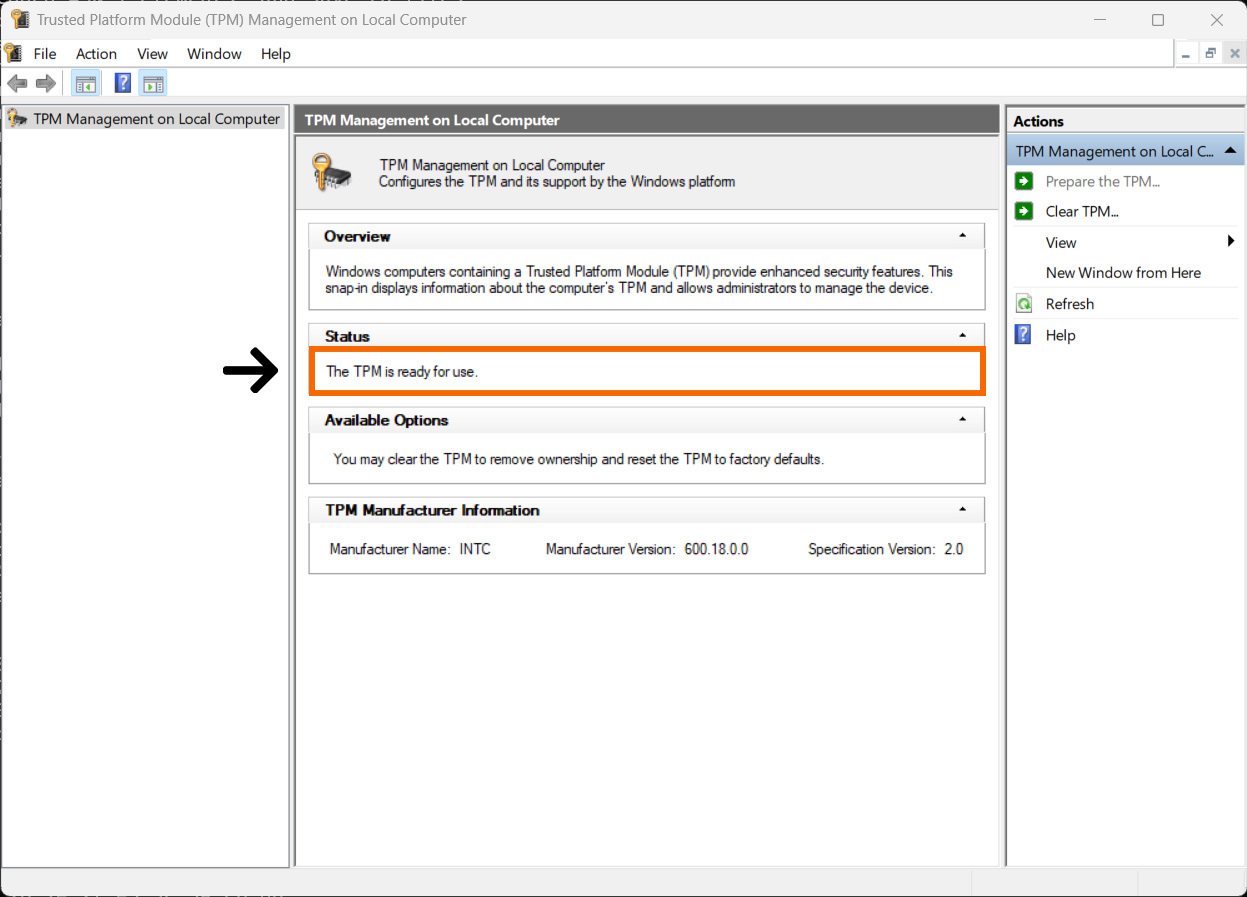
Microsoft’s TPM guide describes two ways to inspect the security processor. In Windows Security, open Device Security and look for Security processor details. Alternatively, open Run, enter tpm.msc and read the TPM information window. Check whether it is ready to use and whether Specification Version is 2.0.
Copy the values accurately rather than relying on the word enabled. Microsoft explains that Compatible TPM cannot be found can mean the feature is disabled, not necessarily absent. For the MW4 Secure Boot investigation, also record Manufacturer Version. That is a different field from Specification Version. These are read-only checks; there is no need to press Clear TPM to collect them.
3. Read BIOS Mode and Secure Boot State
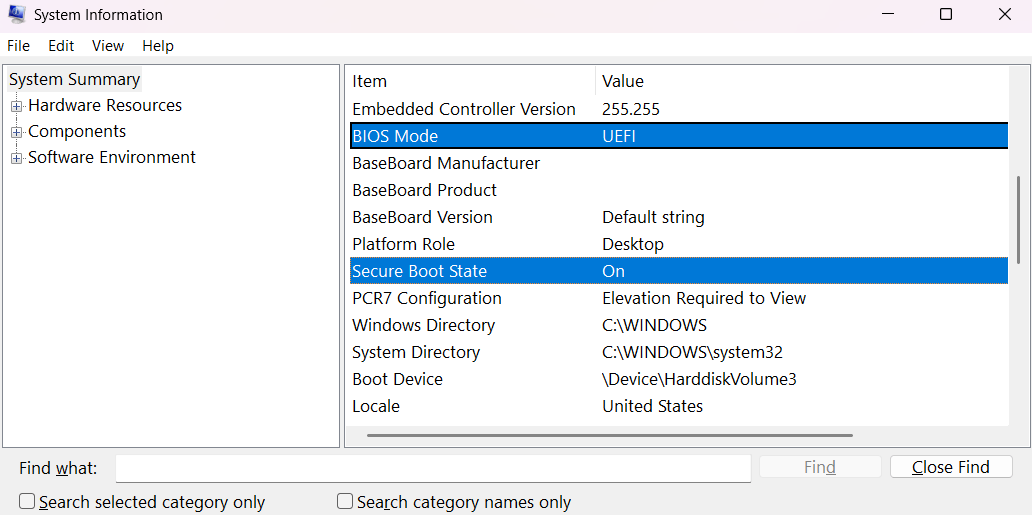
Open System Information by entering msinfo32 in Run. Record BIOS Mode and Secure Boot State. Activision’s reference screenshot shows where those values appear; your hardware information will differ. A UEFI entry and an On state answer different questions from the TPM version check above.
Microsoft’s Secure Boot guidance explains the relationship between UEFI firmware and Secure Boot, and directs users to manufacturer-specific instructions. If the state is Off, Unsupported or the boot mode is Legacy, stop to identify the exact PC or motherboard model. Do not change a boot mode or disk format just because a generic video uses a similar-looking menu.
4. Treat firmware attestation as a separate branch
MW4 Secure Boot status can look correct while attestation still fails. Activision’s support page links AMD’s fTPM attestation notice and provides manufacturer-specific guidance. This is why the Manufacturer Version belongs in your notes even when Specification Version is already 2.0.
Use the current Secure Attestation Wizard linked from Activision’s official page if you need its scan, then read the exact result and matching explanation there. Obtain any required utility from that official link. A firmware recommendation is not permission to flash an arbitrary file. Match the model and revision with your PC maker, including on a prebuilt system or laptop where a retail-board download may be inappropriate.
5. Choose the next action from the evidence
For MW4 Secure Boot troubleshooting, keep a compact record: exact message, Windows version, PC or board model, TPM fields, BIOS Mode, Secure Boot State and the scan result if used. Send that information to the matching official support channel when the guidance does not resolve the warning.
Activision warns that incorrect UEFI or BIOS changes can cause boot failures and recommends manufacturer help when you are unfamiliar with them. Follow those instructions rather than experimenting with keys, clearing security data or disabling protections. This guide does not perform those changes and does not establish that your particular firmware needs updating.
Once a documented change is completed through the correct support process, recheck the same Windows fields and the original in-game warning. Keep ordinary crashes separate. Our CONTROL troubleshooting guide shows the same evidence-first approach to distinguishing a named correction from a broad promise. There is no hands-on compatibility guarantee here.